Adding a WordPress site
Head to Sites and click Add site to get started. Select the WordPress option and you'll be guided through the process of installing our WordPress plugin to connect your site to Create Pages.
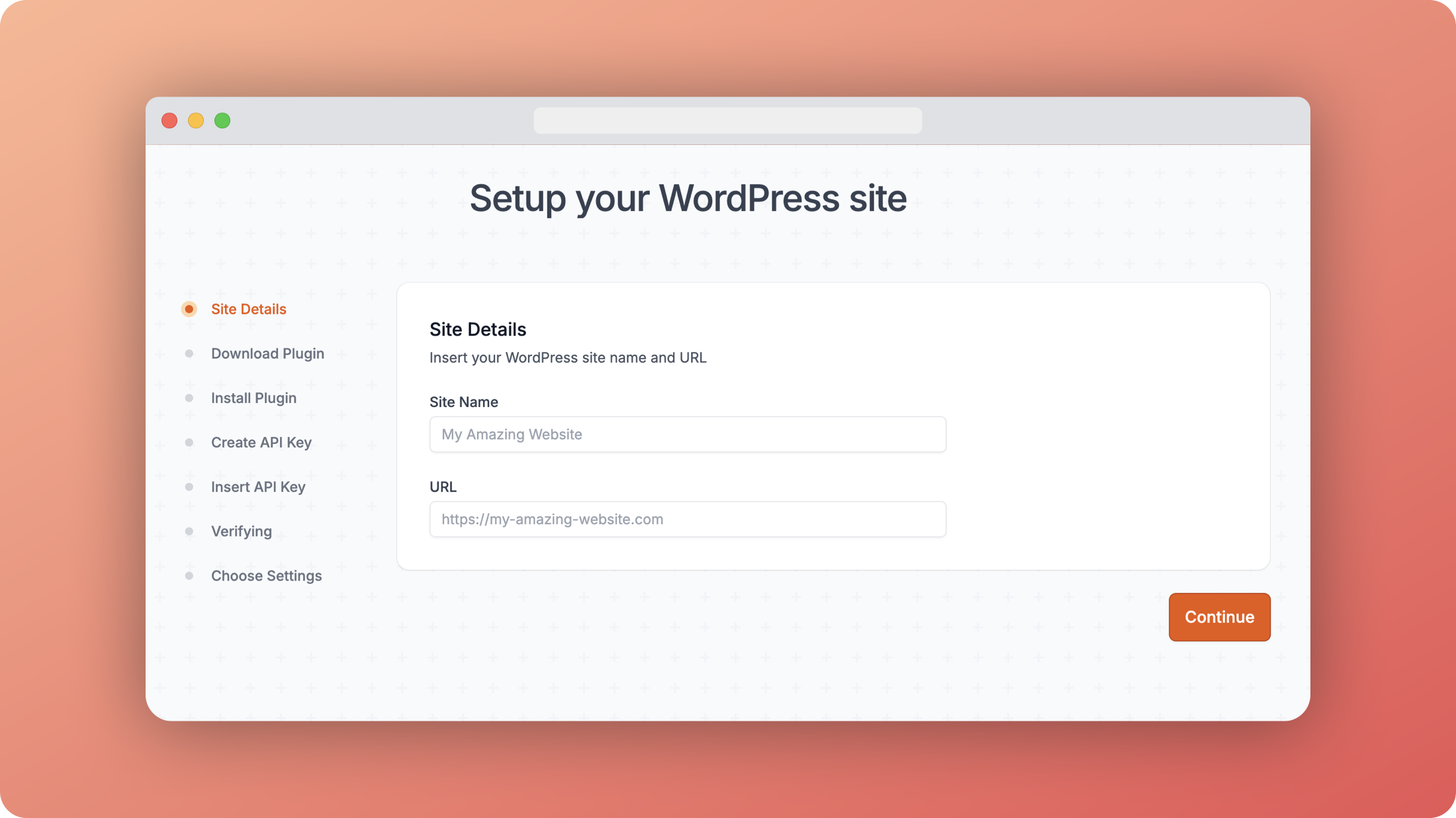
Once you fill in the site name and URL, you can download the plugin and install it.
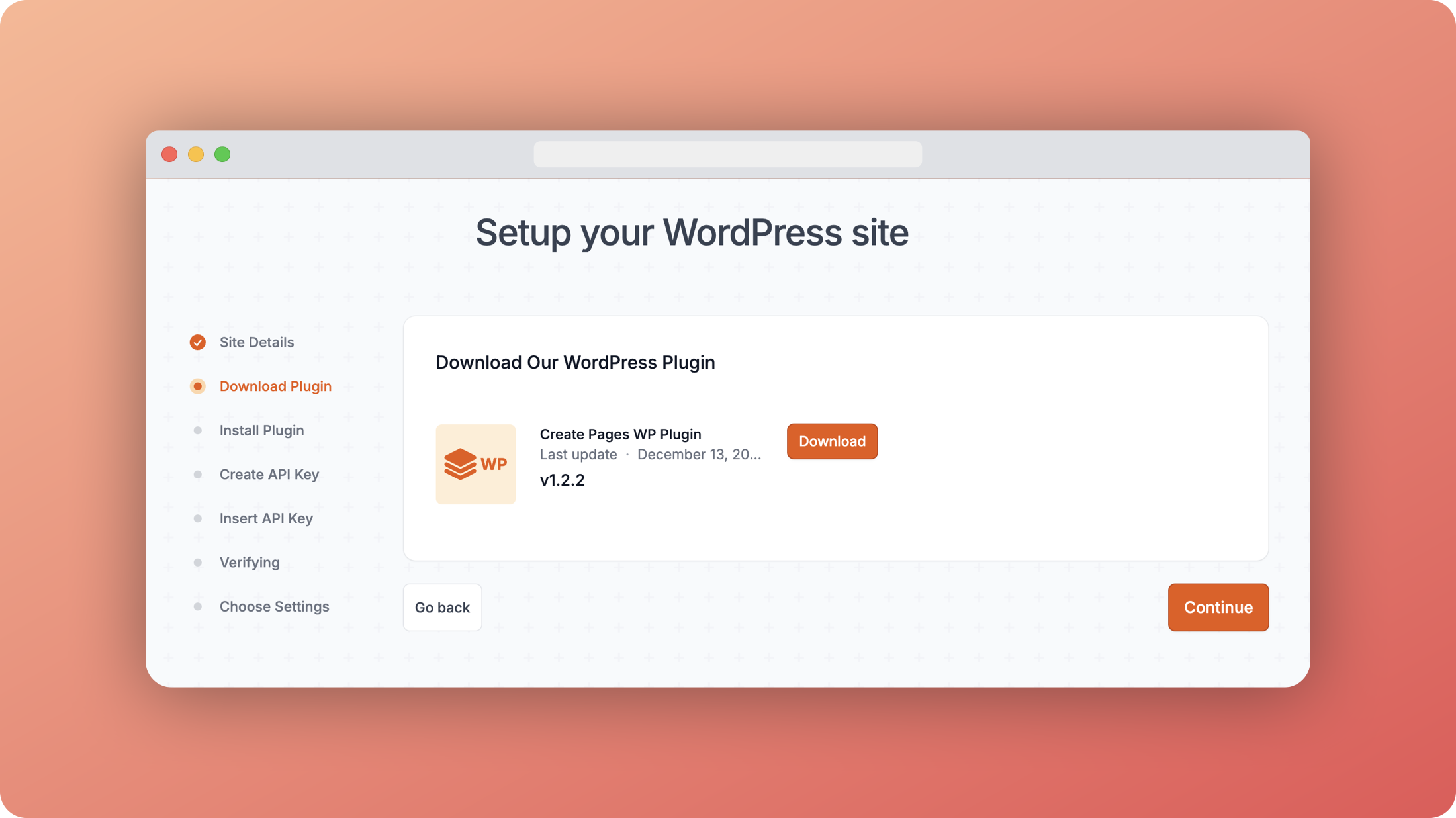
Go to your WordPress admin panel and click on the "Plugins" menu. Then click on the "Add New Plugin" button. After that, click on the "Upload Plugin" button and select the downloaded zip file. Finally, click on the "Install Now" button and activate the plugin.

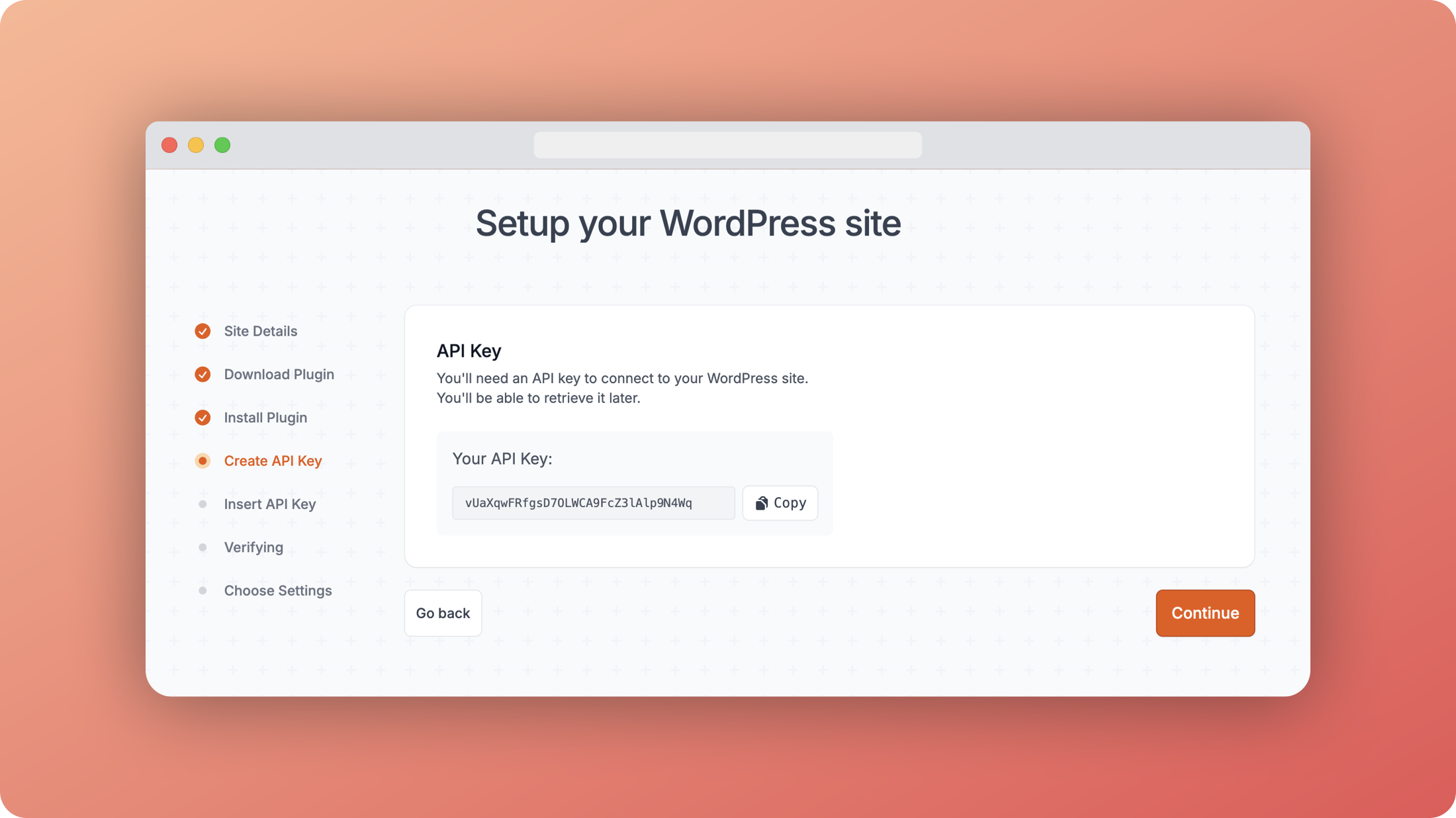
When you click continue, create an API key so that the plugin can connect to Create Pages.
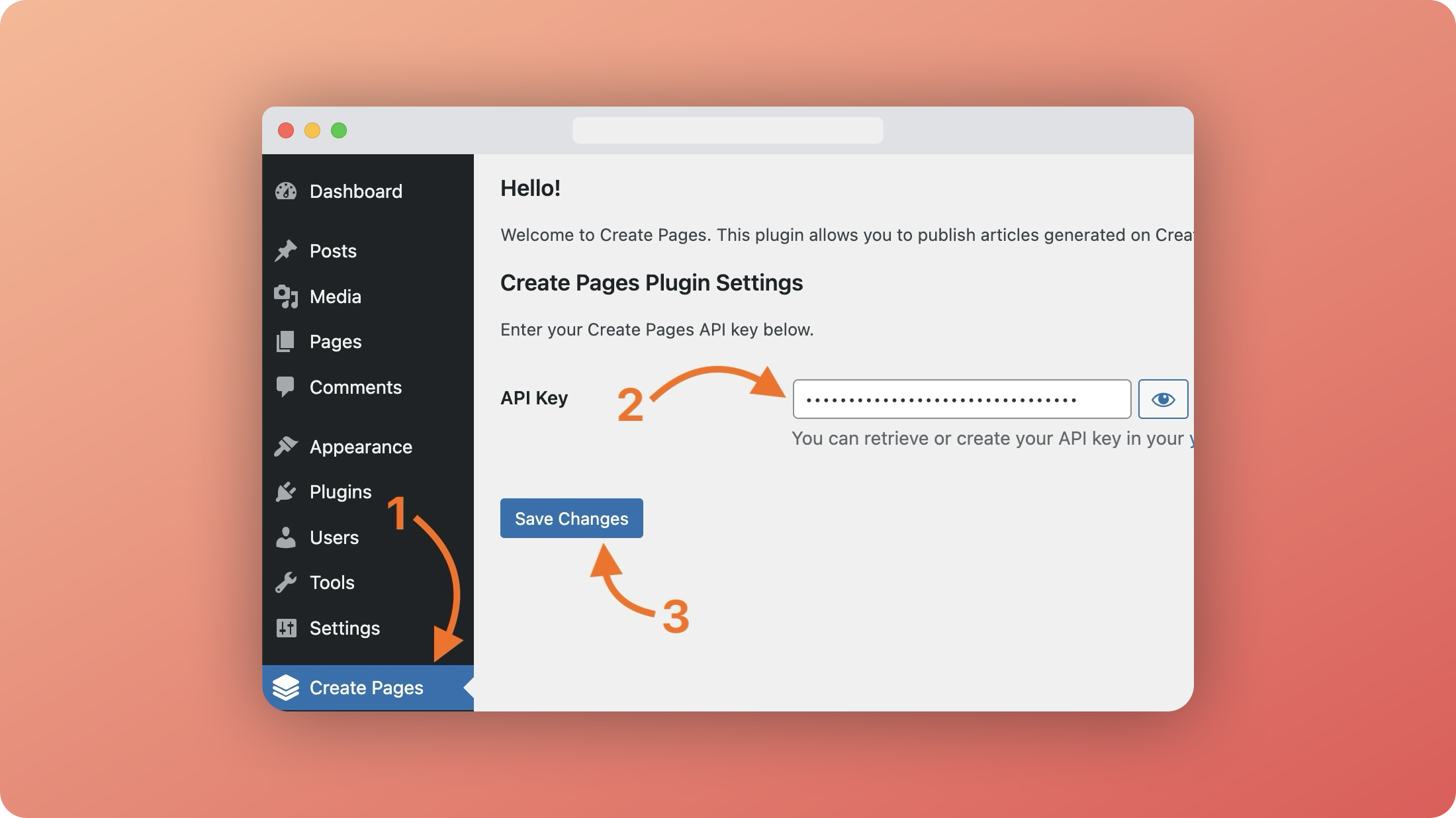
Go to your WordPress admin panel and click on "Create Pages". Paste your API key in the input field and click on "Save Changes".
If everything went well, you should see a message saying that the site has been connected.

WordPress plugin settings
The final step is to choose your plugin settings. Here's what each option does:
Content Settings
Post Type and Status
- Choose the default post type (Posts, Pages, or Custom Post Types)
- Set whether posts should be published as Draft or Published
Date Options
You have several ways to handle post dates:
- Publishing Date - Use the date when the article is published
- Static Date - Set a specific date for all articles
- Dynamic Date - Pull the date from a data source variable
- Random Date - Generate a random date between two dates
Author Settings
Choose how to handle post authors:
- No author - WordPress will default to the site owner
- Static - Use the same author for all articles
- Dynamic - Pull the author from a data source variable
You can refresh the author list if it doesn't match your site's current authors.
Categories
Control how categories are assigned:
- Static - Use the same category for all articles
- Dynamic - Pull the category from a data source variable
You can refresh the category list to match your site's current categories.
Tags
Choose how to handle post tags:
- No tags - Don't add any tags
- Static - Use the same tags for all articles
- Dynamic - Pull tags from a data source variable
Taxonomies
Manage custom taxonomies:
- No taxonomies - Don't use custom taxonomies
- Use taxonomies - Add custom taxonomy terms to articles
Additional Settings
Content Format
Choose how content should be formatted:
- HTML with Gutenberg blocks (preferred)
- Standard HTML
Featured Images
Control featured image behavior:
- Set first image as featured image
Custom Fields
Add WordPress custom fields to your posts:
- None - Don't use custom fields
- Use Custom Fields - Add custom fields with static or dynamic values
For each custom field, you can:
- Set a field key (using lowercase letters, numbers, and hyphens/underscores)
- Choose between static or dynamic values
- Set the field value or map it to a data source
Having trouble?
If you run into any connection issues, try these steps:
- Double-check that your site URL is correct and your site is accessible
- Verify your API key is entered correctly
- Make sure your WordPress site can make outbound HTTP requests
- Check that your server meets our minimum PHP requirements
- Look in the WordPress debug log for any error messages